For the latest Release Notes, please refer to the items in the Biznews Hub.
-
How do I activate the Household Member feature for my clients?
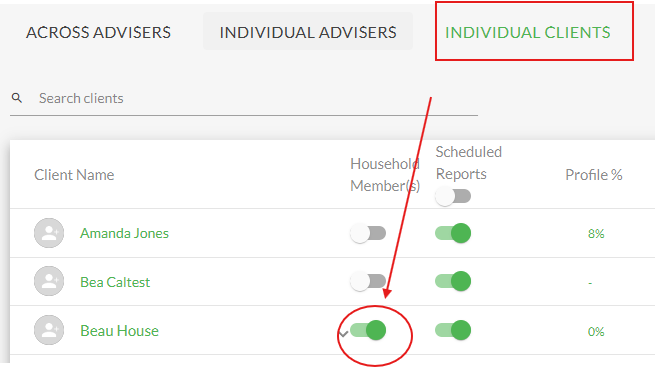
Household Member1. Log in to your Business Administrator or Adviser account.
2. From the 'Individual Clients' page. click on the slider to permit a client to invite a Household Member.
-
How do I invite a Household Member to my Client Account?
Household MemberThis feature must first be activated by your Financial Adviser.
Note: Your Financial Adviser may also invite a Household Members to share your Moneysoft PFM account, by following these same steps on your behalf.
1. Login to your Moneysoft PFM account as the Primary Client.
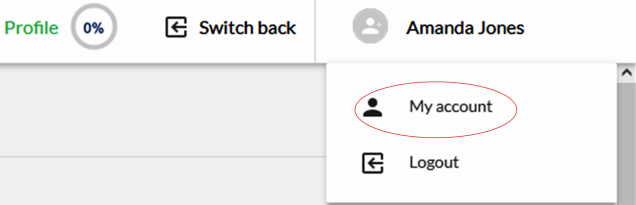
2. Click on your name in the top right corner and select ‘My Account’.
3. Locate ‘Add a Household Member’ on the bottom left side of the page beneath ‘My Adviser’.
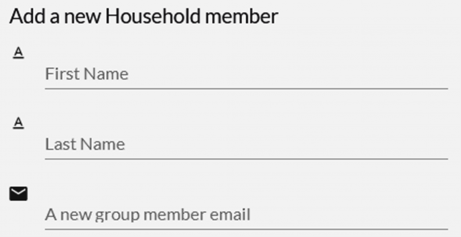
4. Enter the name and email address of the Household Member then click ‘Send Invite’. (The ‘Send Invite’ button will only appear once the details are entered into the fields).
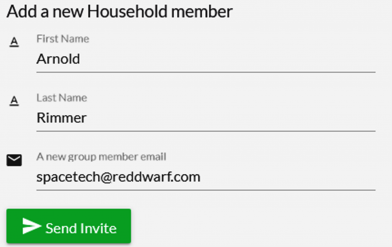
5. The Household Member will receive an email inviting them to register. They must complete the registration to be able to log in to Moneysoft PFM. Note: The feature is currently limited to one Primary Client and one Household Member, per Moneysoft PFM account.
-
How do I update Household Member details?
Household Member1. Log in to Moneysoft PFM using your Household Member username (email address) and password.
2. Click on your name in the top right corner (you will also see the name of the associated Primary Client) and select ‘My Account’.
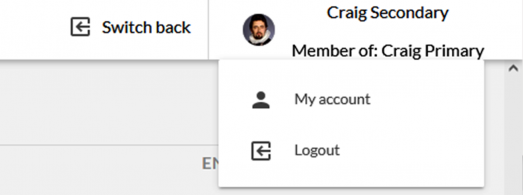
3. Locate the profile on the left side of the screen. The Household Member has a restricted profile view and cannot alter the adviser access or mask transactions.
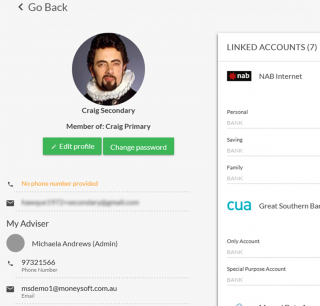
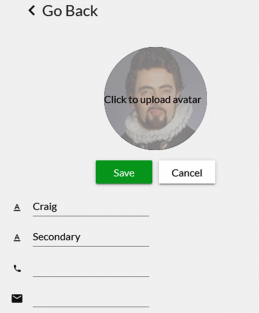
4. Click on ‘Edit Profile’ to update your Name, email address, phone number or to upload an avatar.
Note: your email address added is your Moneysoft PFM username, so if you change it, remember to use the correct username the next time you log in.
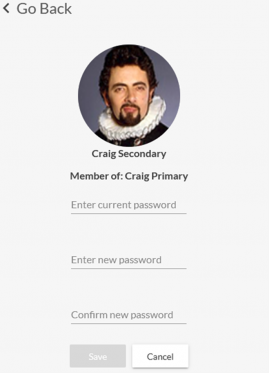
5. If necessary, click on ‘Change Password’ to update your Moneysoft PFM password.
-
How do I delete a Household Member account?
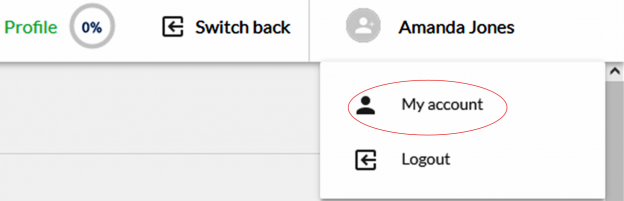
Household Member1.Log into your Primary Client Account. Click on your name in the top right corner and select ‘My Account’.
2. Locate ‘List of Household Members’ on the left side of the page (below ‘Add a New Household Member’).
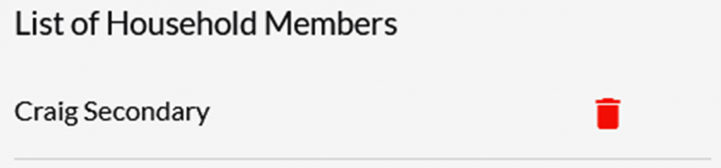
3. Click on the red trash can icon to open the account deletion confirmation window.
- Click ‘Delete’ to permanently remove the Household Member
- Click ‘Cancel’ to stop the deletion and return to the ‘My Account’ page.
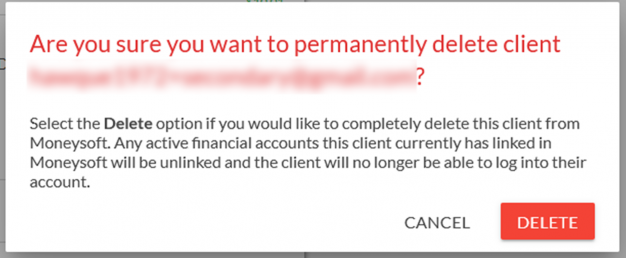
Once deleted, all financial data associated to the Household Member will be permanently removed from the Primary Client account.
-
What financial accounts can I view and edit as a Household Member?
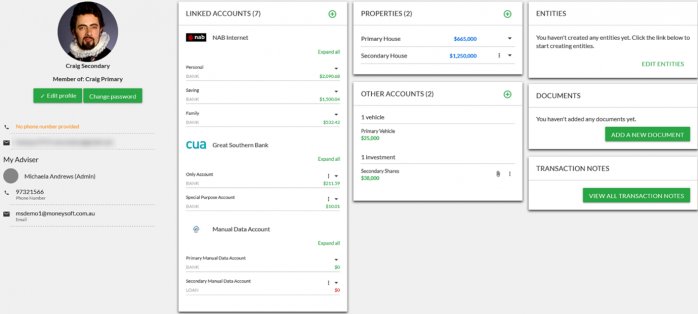
Household Member1. Both the Primary Client and the Household Member can see all the same details within the Moneysoft PFM account.
2. For the budget, goals, transactions and reports both the Primary Client and the Household Member will have the same level of access and control over these items, i.e. they can view, delete and edit these.
3. For linked accounts, the Primary Client and Household Member will be able to add their own financial accounts, properties and other accounts.
4.The Primary Client and Household Member will only be able to interact with the financial accounts, properties and other accounts they have individually linked to the Moneysoft PFM account.
5. When the Primary Client is logged in, the three-dot options menu will not be visible for any financial accounts, properties and other accounts that were linked by the Household Member, and vice versa.
-
How do I search for Household Members?
Household MemberThe Household Member feature is available for Financial Advisers under a Moneysoft Business partner account only and must first be activated.
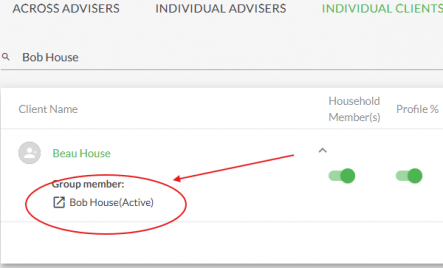
1.To find a Household member. On the ‘Individual Clients’ page, type the first or last name of the Household Member into the search field. This will reveal the Primary Client to which account the Household Member has been invited.
2. Click on the down arrow to expand the Primary Client and view the Household Member. The Household Member’s name and status will be displayed.
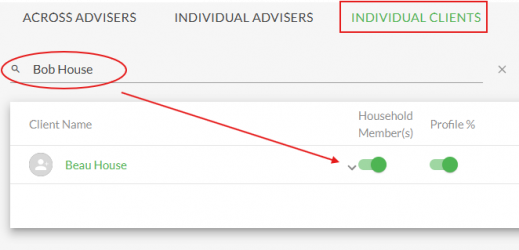
3. Click on the icon to the left of the Household Member’s name to impersonate their Moneysoft PFM login.